
The desktop app
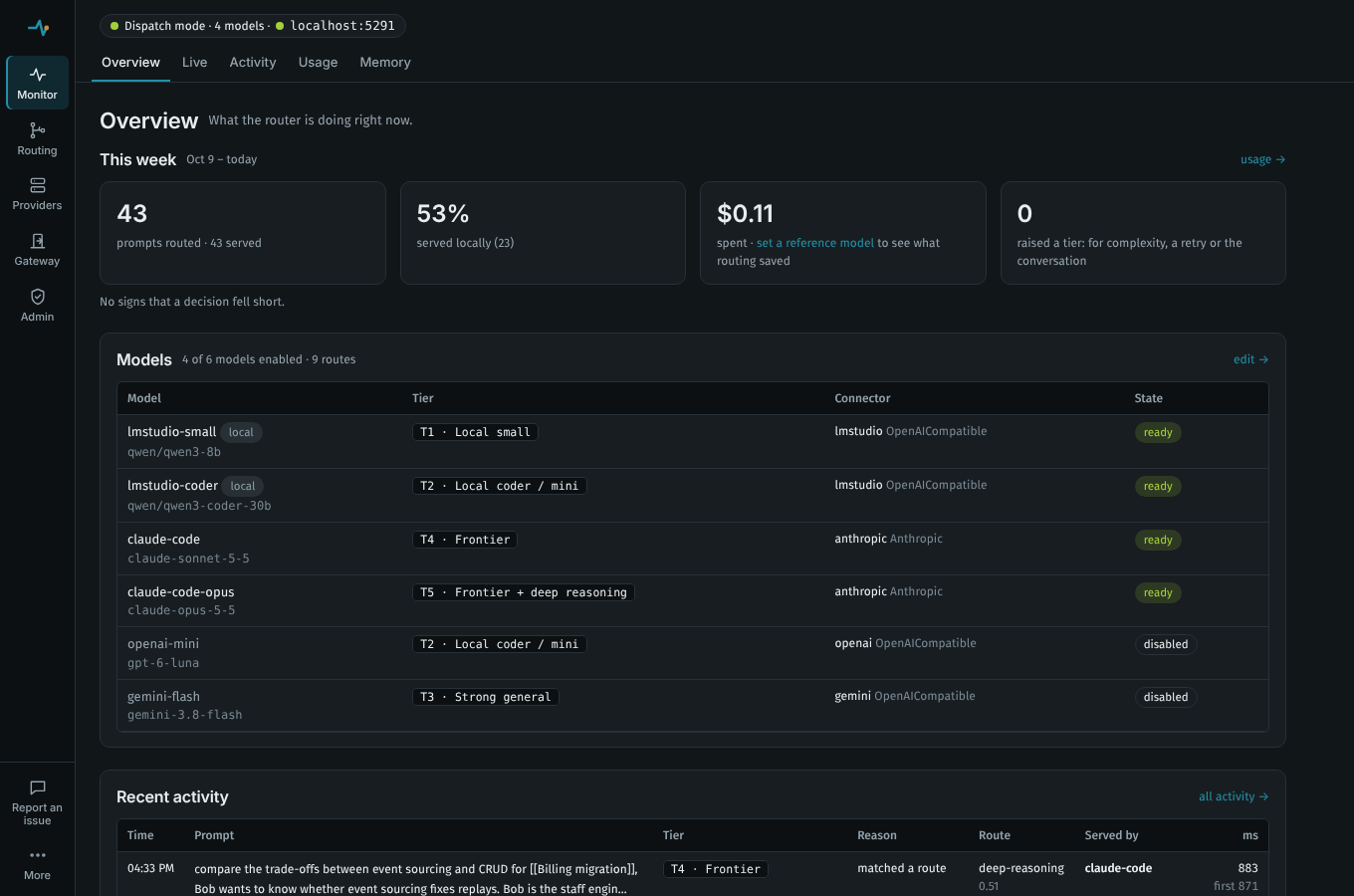
SemanticRouter is the router as a desktop app: an icon in the tray (the menu bar on macOS) that runs the router and shows the dashboard. Nothing stays open in a terminal, and it can start when you sign in. It is the same router and the same dashboard as the semantic-router tool, with the same configuration directory, so you can switch between them freely.
Install
Download the installer for your machine from the releases. It is self-contained: no .NET installation is needed, and no administrator rights.
| Platform | Installer | What it does |
|---|---|---|
| Windows 10/11 | SemanticRouter-win-x64-Setup.exe | Installs for you only, into %LOCALAPPDATA%\SemanticRouter, adds a Start menu entry, and starts the app. Remove it in Settings → Apps. |
| macOS 12+ | SemanticRouter-osx-arm64-Setup.pkg (Apple silicon) or osx-x64 (Intel) | Installs SemanticRouter.app into Applications (or your own Applications folder) and starts it. |
| Linux | SemanticRouter-linux-x64.AppImage | One file: make it executable (chmod +x) and run it, from wherever you keep it. See Linux for the tray and the app window. |
The first start is the same as from the archives: the welcome window offers the background service and start at sign-in.
On a Mac, the in-process embeddings (Onnx) need Apple silicon and macOS 14 or later. ONNX Runtime, which runs them, publishes no build for Intel Macs, and its Apple silicon build is made for macOS 14. The rest of the app runs on macOS 12 and later. On an Intel Mac, or macOS 12 or 13, run an embedding model in LM Studio or Ollama (for example nomic-embed-text) and set it under Providers → Embeddings; semantic-router init and doctor say so, and the dashboard does not offer Onnx there.
Until the release is signed, the operating system warns on first start. On Windows, SmartScreen says "Windows protected your PC": choose More info → Run anyway. On macOS, if the installer is blocked, right-click it and choose Open, or allow it under System Settings → Privacy & Security.
Signing
The release workflow signs the Windows and macOS installers with these credentials, set as repository secrets and variables (or as secrets and variables of the release environment):
| Platform | What it takes | Repository secrets | Repository variables |
|---|---|---|---|
| Windows | An Azure Trusted Signing account and certificate profile, and an app registration allowed to sign with it | AZURE_TENANT_ID, AZURE_CLIENT_ID, AZURE_CLIENT_SECRET | AZURE_SIGNING_ENDPOINT (e.g. https://weu.codesigning.azure.net), AZURE_SIGNING_ACCOUNT, AZURE_SIGNING_PROFILE |
| macOS | An Apple Developer account: the Developer ID Application and Developer ID Installer certificates (exported as .p12, base64) and an app-specific password for notarization | APPLE_BUILD_CERTIFICATE_BASE64, APPLE_INSTALLER_CERTIFICATE_BASE64, APPLE_P12_PASSWORD, APPLE_ID, APPLE_APP_PASSWORD, APPLE_TEAM_ID | APPLE_SIGN_APP_IDENTITY, APPLE_SIGN_INSTALL_IDENTITY (the certificates' names, e.g. Developer ID Application: Ada Lovelace) |
Signing is required. The release's first job checks, for each platform, whether every secret and variable in its row is set; it sees only whether each one is set, never its value. Then:
| Each platform's settings | What the release does |
|---|---|
| All set | Signs that platform's installers, and checks the signature (and on macOS the notarization ticket) before uploading them. A signature that does not check out fails the release. |
None set, and the variable ALLOW_UNSIGNED_RELEASE is true (spaces and capitals are ignored) | Publishes that platform's installers unsigned, with a warning. |
None set, ALLOW_UNSIGNED_RELEASE not set (or anything but true) | Fails before anything is published, naming the platform. |
| Some set, some not | Fails before anything is published, naming the missing settings. ALLOW_UNSIGNED_RELEASE does not change this. |
Until the certificates exist, set the variable ALLOW_UNSIGNED_RELEASE to true (in the release environment, Settings > Environments > release, or for the repository, Settings > Secrets and variables > Actions > Variables), or every release fails at its first job. Delete it once both platforms sign, so that a lost secret stops a release instead of publishing unsigned installers. The run's summary has a Code signing table, and each installer job adds a line per installer saying whether it was signed. The Linux AppImage and the archives are never code-signed.
The app is built in jobs that hold no secret and can only read the repository (installer-build, desktop-build): deploy/publish-desktop.sh publishes it on each installer's own OS. The signing jobs download that build and run no dotnet build or publish, so no package's build code runs next to a signing credential; they only install vpk, which packs, signs and uploads. The macOS job imports the certificates into a temporary keychain and stores a notarytool profile, and vpk signs, notarizes and staples the app and the .pkg.
Locally, deploy/package-installer.sh builds and signs in one go with the same settings as environment variables (see the script's header); with PUBLISH_DIR it packages an app already published there instead.
Independently of code signing, every installer, archive and update package has a build provenance attestation and a line in the release's SHA256SUMS, made after signing, so you can check a download came from this repository's release workflow: see Verifying a release. The release's SBOM and THIRD-PARTY-NOTICES.txt cover the app too; the notices also ship next to the executable.
Updates
An installed app updates itself from GitHub Releases. It looks a minute after it starts and then twice a day, and downloads a new version in the background (only the changes when it can). The tray menu then offers Restart to update to …; otherwise the update is applied the next time you quit the app. When the background service runs the app, it is stopped for the update and started again with the new version, with the same configuration directory and options; a service that runs the semantic-router tool is left alone (a service the tool installed). Check for updates automatically in the tray menu turns the checks off (kept in desktop.json).
About SemanticRouter (or Check for updates now… in the tray menu, which also checks at once) shows where updates stand: up to date and when it last checked, checking, a version ready to install or available, why a check or download failed, or why updates are off. Its Check now looks straight away, even with the automatic checks off; Restart to update and the two switches below are the tray menu's own.
The dashboard in the app window says so too: a banner under the tabs when an update is ready or available, with Restart to update and Not now (which hides it until the next version), and while it downloads. About SemanticRouter is also under More at the foot of the dashboard's rail. In a web browser the dashboard shows neither: only the app window can reach the app.
On macOS the app lives in the menu bar, with no Dock icon and no menu bar of its own, so About SemanticRouter, Check for updates now… and Settings… are in its menu-bar menu and under More on the dashboard. Without an Edit menu, macOS's web view would not act on ⌘C, ⌘V, ⌘X, ⌘A and ⌘Z, so the dashboard in the app window handles them itself: copying, pasting (macOS may ask once to allow it), cutting, selecting all and undo work in its fields as usual.
Untick Install updates when quitting to decide yourself: the app then only says a new version is available (in the tray menu, and once as a system notification) and downloads nothing until you choose Restart to update to …, which downloads it, applies it and starts the app again. Quitting never applies it.
From a script: SemanticRouter --update downloads and applies an available update and exits (0 when up to date or updating, 1 when the update could not be applied). SemanticRouter --update --restart does what Restart to update does: the new version starts once the update is applied, and starts the background service again if it ran the app.
An administrator can turn updates off, take them from an internal feed, make them notify-only, or require them to be signed by a given publisher, for every user of the machine: see Managed deployment.
What an update is checked against. The app checks each downloaded package against the SHA-256 checksum in the feed's releases.<channel>.json, but that file comes from the same GitHub release as the package. Until the releases are signed, an update is trusted on GitHub's word: whoever can change a release's files (a stolen maintainer token, a compromised release job) can ship an update that is applied when the app quits. Only Updates:Publisher in the machine policy adds a check of its own, and it refuses every update from GitHub until the releases are signed. Verifying the project's own publisher by default, without a policy, waits for the signing certificates.
SEMANTICROUTER_UPDATE_SOURCE (a URL or a folder of packages) points the app at another feed to try a build before it is released. A release build takes it only when the machine policy sets Updates:AllowCustomFeed; otherwise it is ignored, with a line in the log. Any feed, from the policy or the variable, must be HTTPS or a folder (a local path or a file share); plain HTTP is accepted only to this machine.
Uninstall
- Windows: Settings → Apps → SemanticRouter → Uninstall (or
%LOCALAPPDATA%\SemanticRouter\Update.exe uninstall). It removes the background service (unless it runs thesemantic-routertool) and the app's sign-in entry first, then the program and the Start menu entry. - macOS and Linux have no uninstaller: turn off Keep the router running in the background and Start at sign-in in the tray menu (or run
SemanticRouter --uninstall-service), quit, then deleteSemanticRouter.appor the AppImage.
The configuration directory (your configuration, the state database, the logs) stays; delete it yourself if you no longer want it (see the tool's docs for where it is).
The archives
The releases also have the plain archives, for people who prefer them. They do not update themselves.
| Platform | Download | Then |
|---|---|---|
| Windows 10/11 | SemanticRouter-<version>-win-x64.zip (or win-arm64) | Unzip anywhere, for example %LOCALAPPDATA%\Programs\SemanticRouter, and run SemanticRouter.exe. |
| macOS 12+ | SemanticRouter-<version>-osx-arm64.zip (Apple silicon) or osx-x64 (Intel) | Move SemanticRouter.app to Applications. The app is not signed yet: the first time, right-click it and choose Open, or run xattr -dr com.apple.quarantine /Applications/SemanticRouter.app. |
| Linux | SemanticRouter-<version>-linux-x64.tar.gz (or linux-arm64) | Unpack, for example to ~/.local/opt/SemanticRouter, and run SemanticRouter. |
To build it yourself: dotnet run --project src/SemanticRouter.Desktop, deploy/package-desktop.sh <rid> <version> <dir> for the same archives the release makes, or deploy/package-installer.sh <rid> <version> <dir> for an installer (needs dotnet tool install -g vpk; the macOS installer must be built on macOS). On Windows, deploy\update-windows.ps1 pulls, rebuilds and reinstalls the tool, the background service and the app in one go (-InstallService the first time; Get-Help .\deploy\update-windows.ps1 for the options).
Using it
Start it and the dashboard opens. The first time, a welcome window offers to keep the router running in the background and to show the app in the tray when you sign in; both are ticked, and both can be changed later in the tray menu or in Settings. Then the dashboard opens on its Overview, where Set up SemanticRouter adds your first model: it lists the CLIs it finds on this machine (Claude Code, Codex, Copilot) and LM Studio or Ollama if they run, and the API providers you can add with a key, then lets you send a test prompt. The app needs no command line for any of it. Close the dashboard and the router keeps running; the tray icon brings it back (click it, or choose Open dashboard). Starting the app again while it runs also opens the dashboard.
The window opens at a size that fits the screen it is on (title bar included, whatever the display scaling), and after that where you left it: its position, size and whether it was maximized are kept in desktop.json. If that screen is gone, it opens on the main screen again.
The tray menu:
| Item | What it does |
|---|---|
| Open dashboard | Opens the dashboard where you chose (below). |
| No model is enabled yet: set one up… | Shown while the router has no enabled model, so it cannot answer any prompt; opens the setup on the dashboard's Overview. |
| Needs a decision: … | Shown when something needs you (a connector down, a subscription that keeps hitting its limit, …); opens the page to decide on. See notices. |
| This week: 1,234 prompts · 62% local · saved $4.10 | The digest of the last 7 days; opens the Overview. |
| Restart to update to … | Shown when an update has been downloaded; see Updates. |
| Router learned N things this week | Shown when automatic tuning applied changes in the last 7 days; opens the Router learned page. |
| Status line | Where the router listens, whether it is the app's own or one already running, or why it could not start. While no model is enabled it adds "but no model is enabled yet". |
| Restart router | Restarts the router: the background service's, or the app's own (for example after it failed to start). |
| Open the dashboard in → App window / Web browser | Your choice of where the dashboard opens, remembered in desktop.json. The app window uses the platform's own web view (WebView2, WebKit, WebKitGTK or WPE WebKit); links to the router stay in the window, and https and http links elsewhere open in your browser. A link to any other scheme (file:, a network share, ms-msdt:, javascript: and the like) is not opened at all, so a link in the dashboard can never start another program. Each link it hands to the browser or drops is noted in the app's log. |
| Keep the router running in the background | The background service on or off; see below. |
| Start at sign-in | Shows the app in the tray whenever you sign in. The router itself starts at sign-in through the background service. |
| Check for updates automatically | Installed app only: whether it looks for updates. |
| Check for updates now… | Installed app only: opens the Updates section of About SemanticRouter and checks at once. |
| Install updates when quitting | Installed app only: whether a downloaded update is applied when you quit. Unticked, an update is only announced and applied when you choose Restart to update. Greyed out when your organization's policy makes updates notify-only. |
| Show the log, Show the configuration folder | The router's log (logs/semantic-router.log) and its files. |
| Settings… | The router's status and what last went wrong, Restart router, the background service, start at sign-in, where the dashboard opens, and Show the log / Show the configuration folder: the tray menu's settings in a window. Also under More on the dashboard (as App settings, in the app window). |
| About SemanticRouter | The version, where updates stand (with Check now, Restart to update and the update switches), and links to the GitHub repository, the documentation, issues, releases and the licence. |
| Quit SemanticRouter | Stops the app's router and quits. |
When something needs a decision, the app also shows a system notification, once per notice (Notification Center on macOS, notify-send on Linux, a toast on Windows). Notifications:Enabled: false in the router's configuration turns them off. On Linux (libnotify 0.7.10 or later) a click on a notification opens what it is about: the dashboard page for a notice, the setup, or About for an update; on macOS and Windows a click does nothing yet. When something you asked for fails (turning the background service on or off, restarting it, downloading an update), the app says so in a notification as well as in the tray menu and Settings. A router with no enabled model gets a notification too, once (not on the first start, when the dashboard opens on the setup anyway), and again if every model is later turned off.
SemanticRouter --quit quits a running app from a script.
The app and the background service
The router can run in two places, and the app shows it either way:
- In the background (recommended). Tick Keep the router running in the background in the tray menu (the welcome window offers it on first start). The operating system's own service manager then runs
SemanticRouter --headless(this same program, with no window or tray) whenever you sign in, restarts it if it fails, and keeps it answering when the app is closed. The app shows that router; the status line says "Using the router already running on …", Restart router restarts the service, and quitting the app leaves it running. It is the same per-user service assemantic-router service(a systemd user unit, a launchd agent, or a sign-in entry on Windows), run by the app instead of the tool. Being a GUI program, it starts on Windows without a console window. - Inside the app. With the box unticked the app runs the router itself, and quitting the app stops it.
Switching hands the port over: the app stops its own router before the service starts, and starts it again when the service is removed. If the service cannot be set up (no systemd user session, for example), the app keeps running the router itself and the tray menu says why.
If a router already runs for the configuration directory when the app starts (the service, or semantic-router in a terminal), the app uses it rather than competing for the port.
A service the tool installed. The app and semantic-router service install set up the same service, so the app can sit in front of the tool's: the box is ticked, and its label names the program the service runs (the service runs semantic-router). The app treats that service as the tool's:
- an app update leaves it alone, since the update does not replace the tool (update the tool with
dotnet tool update); - uninstalling the app on Windows leaves it in place.
Unticking the box still removes it, as semantic-router service uninstall would. Ticking it again installs the app's own service in its place.
For scripts and installers, without the tray:
| Command | |
|---|---|
SemanticRouter --install-service | Install (or update) and start the background service. Exit code 0 when it worked; the outcome is also written to the log. |
SemanticRouter --uninstall-service | Stop and remove it. |
SemanticRouter --headless | Run only the router, as the service does. Logs go to logs/semantic-router.log. |
Where things live
Everything is in the router's configuration directory, shared with the tool:
| File or folder | What it holds |
|---|---|
desktop.json | The app's own settings: where the dashboard opens, where its window was, whether the welcome window was shown, and the two update switches. |
logs/semantic-router.log | What the router logged (the app has no console). Rolled over to .1 past 10 MB. |
webview/ | The app window's web view profile (WebView2 on Windows, WebKitGTK on Linux; on macOS the system keeps WKWebView's data under ~/Library): the dashboard's sign-in cookie, its localStorage (the theme and a dismissed banner) and the web view's caches. The router marks its API answers no-store, so no prompt preview, configuration or learned example is cached, and the HTTP cache is emptied each time the app window first opens. |
Start at sign-in writes ~/.config/autostart/semantic-router.desktop (Linux), ~/Library/LaunchAgents/io.github.siebe41.semantic-router.desktop.plist (macOS) or the value SemanticRouter Desktop under HKCU\Software\Microsoft\Windows\CurrentVersion\Run (Windows; listed in Task Manager → Startup apps). Moving the app afterwards needs the item turned off and on again.
Options are the tool's: --config-dir, --urls and --SemanticRouter:<key>=<value> work the same way.
Managed deployment
For administrators deploying the app to many machines with Intune, Configuration Manager (SCCM), Jamf or similar.
What gets installed, and where
The installers install for one user, with no administrator rights, and that is the only kind there is today: there is no per-machine package yet (no MSI, and no .pkg that installs for every user and keeps them from changing it). Run the installer in each user's context, not as SYSTEM or root, or it installs into that account's profile instead.
| Program | What it leaves running | |
|---|---|---|
| Windows | %LOCALAPPDATA%\SemanticRouter (the app in current\, Velopack's Update.exe next to it), a Start menu entry, and an entry under Settings → Apps | Nothing until the person chooses in the welcome window (both boxes are ticked): the background service is the value SemanticRouter under HKCU\Software\Microsoft\Windows\CurrentVersion\Run, which starts the router (SemanticRouter.exe --headless, no window) at sign-in; what it runs is kept in semantic-router.service.json in the configuration directory; start at sign-in is the value SemanticRouter Desktop in the same key. |
| macOS | SemanticRouter.app in ~/Applications (installed for the current user) or /Applications | The background service is the launchd agent ~/Library/LaunchAgents/io.github.siebe41.semantic-router.plist; start at sign-in is ~/Library/LaunchAgents/io.github.siebe41.semantic-router.desktop.plist. |
| Linux | The AppImage, wherever it was put | The background service is the systemd user unit ~/.config/systemd/user/semantic-router.service; start at sign-in is ~/.config/autostart/semantic-router.desktop. |
All of these are per user. The configuration directory (configuration, state database, logs) is the router's usual one (where things live). SemanticRouter --install-service and --uninstall-service set the background service up or remove it from a script, without the welcome window; see the app and the background service.
Deploying the installer
- Windows (Intune as a Win32 app, Configuration Manager, a sign-in script):
SemanticRouter-win-x64-Setup.exe --silentinstalls with no window. Velopack's Setup also takes--log <file>(write a log),--verbose, and--installto <dir>(install somewhere else than%LOCALAPPDATA%\SemanticRouter). Install in the user's context (in Intune, Install behavior: User). Setup starts the app when it has installed it, so the person sees the welcome window at once. To uninstall:%LOCALAPPDATA%\SemanticRouter\Update.exe uninstall --silent, which also removes the background service and the sign-in entry. For a detection rule,%LOCALAPPDATA%\SemanticRouter\current\SemanticRouter.exeexists. - macOS (Jamf, an MDM):
SemanticRouter-osx-arm64-Setup.pkg(orosx-x64).installer -pkg SemanticRouter-osx-arm64-Setup.pkg -target CurrentUserHomeDirectoryinstalls into the user's~/Applications, as the release tests do. Installed as root (-target /, how most MDMs run packages), it goes into/Applicationsand belongs to root; the app's own updates run as the signed-in user and have not been tried against such an install, so turn them off in the policy (Updates:ModeOff) and deploy each new version with your MDM. - Linux: copy the AppImage into place and make it executable; it does not install anything else.
Check what you deploy before you deploy it: Verifying a release shows how to verify an installer with gh attestation verify and the release's SHA256SUMS, and the installers are code-signed when the release has signing certificates (Signing).
Controlling updates
The machine-wide policy (the registry on Windows, a configuration profile on macOS, /etc/semantic-router/policy.json on Linux) decides updates for every user of the machine, and the user's tray menu cannot override it:
| Policy | Effect |
|---|---|
Updates:Mode Off | No update checks at all; the update items are gone from the tray menu. Deploy new versions yourself. |
Updates:Mode Feed and Updates:Feed | Updates only from your own feed (below), never from GitHub. |
Updates:Apply Notify | Updates are announced, and downloaded and applied only when the person chooses Restart to update; never when the app quits. Install updates when quitting is greyed out. Works with either Mode. |
Updates:Publisher | An update is applied only when the app in it is signed by this publisher (Windows: the Authenticode certificate's subject or thumbprint; macOS: the Developer ID team ID); otherwise it is refused and deleted. On Linux it refuses every update, since AppImages are not signed. See Update publisher. |
Updates:AllowCustomFeed | A release build takes SEMANTICROUTER_UPDATE_SOURCE (another feed, for testing a build before it is released). Without it only a debug build does. |
semantic-router doctor shows the policy and, on its desktop app updates line, where updates come from and what the policy adds.
Mirror the update feed
The update feed is static files, so any HTTPS server (or a file share the machines can read, as a folder path) can serve it. Each platform is a channel: win-x64, osx-arm64, osx-x64 and linux-x64. For each release, copy from its GitHub release into one folder:
releases.<channel>.jsonfor each channel you serve (it lists the packages and their SHA-256 checksums),SemanticRouter-<version>-<channel>-full.nupkg, andSemanticRouter-<version>-<channel>-delta.nupkgwhen there is one (it updates from the previous version with a much smaller download; without it the app downloads the full package).
Replace releases.<channel>.json with each new release's; the app reads the newest version from it and the package names it lists, so keep at least the packages it names. The installers (*-Setup.exe, *-Setup.pkg, the AppImage) and the zip archives are not part of the feed. Before you publish a release internally, check its files against the release's SHA256SUMS and attestation (Verifying a release); the app also checks each package against the checksum in releases.<channel>.json. Then point the policy at the folder's URL: Updates:Mode Feed and Updates:Feed https://updates.corp.example/semantic-router.
Finding your CLIs
An app started from the Dock, Finder or a launcher does not get the PATH your shell sets up, so claude, codex and copilot installed in ~/.local/bin, Homebrew or an npm prefix would not be found. On macOS and Linux the app asks your login shell for its PATH once when it starts, and adds ~/.local/bin, ~/.npm-global/bin, /opt/homebrew/bin and /usr/local/bin when they exist. Windows programs get your user PATH anyway.
Linux
- The tray icon needs a desktop that shows StatusNotifier icons: KDE Plasma, Cinnamon, XFCE and most others do; on GNOME install the AppIndicator and KStatusNotifierItem Support extension. Without one the app still runs; start it again to open the dashboard, where More has App settings and About SemanticRouter, and
SemanticRouter --quitto quit. - The app window needs WebKitGTK 4.1 or WPE WebKit 2.0 (
libwebkit2gtk-4.1-0on Debian and Ubuntu,webkit2gtk4.1on Fedora). Without either, App window is greyed out and the dashboard opens in your browser.
Accessibility
- Without the tray. Everything the tray menu does is also in Settings and About SemanticRouter, which the dashboard's More panel opens in the app window, so nothing needs the tray icon (which a keyboard or screen-reader user may not reach, and which GNOME does not show without an extension).
- Screen readers. The app's windows have headings, links read as links (with where they go), the logo is hidden as decoration, and each checkbox's explanation is read with it, including why one is unavailable. The update status and the router's status and problems are announced when they change. After Check now, the focus moves to Restart to update when an update is found, rather than being lost.
- Keyboard. Every window works from the keyboard; Escape closes it (in the welcome window, Escape chooses neither option). Opening the dashboard window puts the focus in the page.
- Large text and contrast. The windows scroll rather than run past the bottom of the screen. Under the platform's high-contrast setting, secondary text keeps full strength; problems are said in words ("Problem: …"), not only in colour. The Fluent theme has no high-contrast palette of its own, so Windows contrast themes do not recolour the app's windows yet.
Status
Exercised on Linux (X11) only so far: hosting the router, attaching to a running one, the single-instance hand-over, --quit, and the dashboard in the app window on WebKitGTK. The Windows and macOS builds compile and their logic is tested in CI, but the tray, the window and start at sign-in have not yet been tried on those systems.